
Sign into the same Google Account on every device, or add that account inside your other calendar app and switch sync on for Calendars. The Google Calendar app gives the smoothest mobile experience; Apple Calendar and Outlook both support two-way sync once you add the account correctly. If events still won't show up, check your internet connection, confirm the app is updated, and make sure the calendar itself is toggled visible.
TL;DR:
- Using native sync options like Apple Calendar or Outlook for time-sensitive updates ensures real-time accuracy, while iCal links are better suited for casual sharing.
- Proper setup involves signing into the correct Google Account, confirming calendar visibility, and toggling sync options on all devices to prevent missed events.
- Troubleshooting frequently requires checking internet connection, app updates, account sign-in, calendar visibility, device settings, and sometimes re-adding the account or clearing cache.
- Full effective sync depends on an incremental sync mechanism, which can break requiring a full re-sync to resolve data staleness.
- For businesses, relying solely on Google Calendar risks missed bookings; integrating tools like Query Trade captures inquiries and automates job confirmation to prevent scheduling gaps.
Table of Contents
- How Do You Set Up Google Calendar Sync on Each Platform?
- Syncing Google Calendar With Apple Calendar, Outlook, and iCal Feeds
- Why Won't My Google Calendar Sync? Common Fixes
- How Do Google Calendar Booking Pages Actually Sync?
- When Native Sync Isn't Enough for a Trades Business
- What Missed Syncs Actually Cost a Trades Business
- Get Structured Job Intake Alongside Reliable Calendar Sync
- Where to Verify These Setup Steps Yourself
- Sources
How Do You Set Up Google Calendar Sync on Each Platform?
Getting sync working correctly depends less on luck and more on doing the setup steps in the right order, on the right platform. Skip one, and you'll spend twenty minutes wondering why last week's job booking never showed up on your phone.
On Android:
- Install or update Google Calendar from the Google Play Store.
- Sign in with the Google Account tied to your business calendar, not a personal one you rarely check.
- Go to Settings, then Accounts, then Google, then Account sync, and confirm Calendars is switched on.
On iPhone or iPad, you have two paths. Install the Google Calendar app and sign in directly, which gives you the native Google interface. Or add the account inside iOS itself: open Settings, tap Mail (or Passwords & Accounts on older versions), select Add Account, choose Google, and toggle Calendars on. The second method feeds Google events straight into Apple's own Calendar app, which is handy if that's where you already live day to day.
On desktop, open calendar.google.com and check the left sidebar. If a calendar isn't listed there, it isn't syncing, full stop. Confirm you're signed into the correct Google Account first (the account switcher sits top right), since a second Gmail address is the most common reason a "missing" calendar was never missing at all.
Running more than one Google Account? You can view several calendars side by side, but only one determines where new events land by default. Set your primary calendar under Settings so job bookings don't scatter across two inboxes.
Pro Tip: Google Calendar only syncs recent mobile events, so if you're hunting for something older, search the web version instead of assuming your phone lost the data.
A missed sync here isn't just annoying. For a tradesperson, it's a job that quietly disappears from the week. Query Trade solves that upstream, by capturing the booking once and syncing it automatically rather than relying on you to catch the gap.
Syncing Google Calendar With Apple Calendar, Outlook, and iCal Feeds
Each connection method behaves differently, and picking the wrong one for the job is where most sync complaints start.
Apple Calendar gives you near real-time two-way sync when you add your Google account through iOS Settings. Changes made on either side, phone or desktop, show up within moments. The alternative, a secret iCal link shared from Google Calendar settings, is a one-way, read-only feed, and it's built for casual visibility, not live scheduling.
Outlook works similarly. Add your Google account directly inside Outlook for personal, account-level sync. If you're on a managed company mailbox, your IT team may need to set up Google Workspace Sync for Microsoft Outlook instead, which handles organization-wide calendar mirroring rather than a single user's login.
iCal subscription links deserve a specific warning. They're read-only by design, and updates commonly lag 12 to 24 hours behind the live calendar. That's fine for sharing your availability with a client who just wants to glance at open days. It's a liability if you're trying to block a slot the moment someone books, because a customer could book the same window twice before the feed catches up.
- Use native account sync (Apple Calendar, Outlook) for anything time-sensitive.
- Reserve iCal subscription links for casual, view-only sharing.
- Consider Google Workspace Sync for Microsoft Outlook if IT manages the mailbox.
- Move to API-based or integrated booking intake once double-bookings start costing you real jobs.
For contractors juggling three or four job sites a week, that last point matters more than any setting inside Outlook.
Why Won't My Google Calendar Sync? Common Fixes
Most sync failures trace back to five or six repeat offenders, and Google's own support documentation backs up the order to check them in.
- Confirm your internet connection is actually active, not just showing a signal icon.
- Update the Google Calendar app. Sync bugs get patched quietly and often.
- Verify you're signed into the correct Google Account, especially if you manage more than one.
- Check calendar visibility. A calendar can be connected but hidden, which looks identical to broken sync.
- Confirm the device isn't in airplane mode or battery-saver mode blocking background refresh.
If the quick checklist doesn't fix it, go deeper. Toggle sync off and back on for that specific account. If that fails, remove the Google account entirely and re-add it. On Android, clearing the Calendar app's cache resolves a surprising number of "stuck" sync states, and it's worth checking whether battery or storage restrictions are quietly preventing background updates. Also glance at your device's time zone setting; a mismatched clock can make new events look like they never synced at all.
Google's own troubleshooting guide lists this exact sequence as the standard fix path, and it resolves the overwhelming majority of everyday sync complaints.
If you're on a work or school Google account, IT admin restrictions can block third-party calendar access outright. That's a call to your admin, not a setting you can override yourself.
On the technical side, Google Calendar's sync relies on a mechanism called incremental sync, using a syncToken to fetch only what changed since the last check. When that token expires or breaks, the API returns an HTTP 410 error, and the client has no choice but to throw out its local data and pull everything fresh. It's the technical reason a calendar can go stale for no visible reason, then suddenly "fix itself" after a full re-sync.
How Do Google Calendar Booking Pages Actually Sync?
Appointment schedules let you publish available time slots on a shareable booking page. When a customer books a slot, it lands directly on your calendar, and the page automatically blocks that time from being booked twice.
A few practical notes for trades work:
- Booking pages are built on desktop at calendar.google.com. The mobile app can't create one.
- Features like multiple booking pages or Stripe payment collection require an eligible Workspace or Google One plan.
- Set buffer time between appointments so a job running long doesn't bleed into the next booking.
- Cap bookings per day and set a minimum lead time to stop same-hour, last-minute requests from ambushing your schedule.
Pro Tip: A 30 minute buffer between site visits sounds excessive until the first job runs over. Build it in from day one rather than after your third scheduling collision.
Booking pages solve availability. They don't solve customer intake, quoting, or deposits, which is where a dedicated trades tool picks up the slack.
When Native Sync Isn't Enough for a Trades Business
Google Calendar handles single-user scheduling well. It gets shakier once a business depends on it for revenue. iCal feeds lag, appointment schedules don't capture job details, and a missed sync means a missed callback. Growing trades operations generally do better with an integrated intake and sync workflow rather than stitching feeds together by hand.
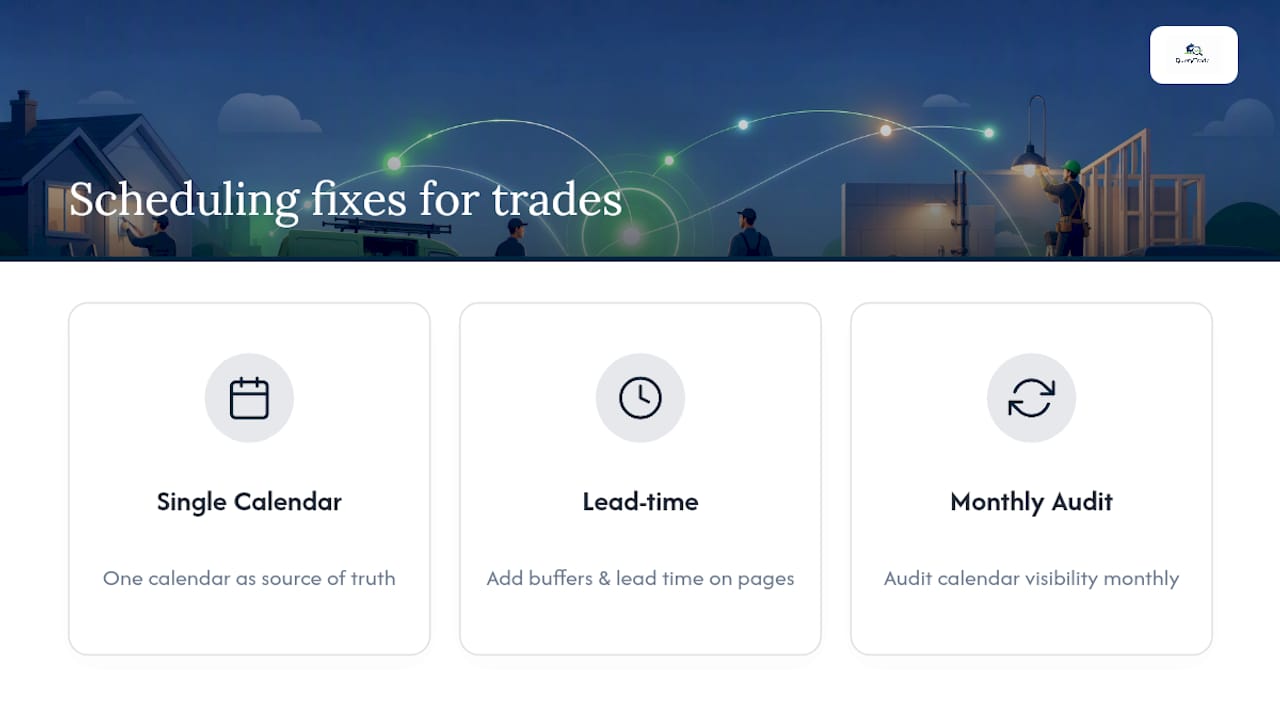
Three habits fix most of this: keep one calendar as the single source of truth, build buffers and lead-time rules into every booking page, and audit calendar visibility monthly. Query Trade complements native sync by capturing the customer request first, then pushing the confirmed job onto your calendar automatically, cutting out the manual re-entry that usually causes drift.
What Missed Syncs Actually Cost a Trades Business
A booking that quietly falls off your calendar isn't a technical glitch. It's a customer who assumes you're confirmed, and a slot you never actually held. We built Query Trade's job pipeline around that exact failure point: capture the enquiry once, sync the calendar automatically, and stop treating scheduling as something you check twice a day out of habit. Review your calendar visibility settings and booking-page rules regularly. If you're still patching gaps by hand, our free trial is worth ten minutes of your time.
— Query Trade
Get Structured Job Intake Alongside Reliable Calendar Sync
Query Trade is the practical layer between "someone contacted me about a job" and "it's correctly on my calendar." Where Google Calendar sync handles the mechanics of moving events between devices, Query Trade handles the part that actually causes missed work: capturing the enquiry cleanly in the first place.
The platform gives you a shareable intake link customers use to submit job details and photos directly, a pipeline that tracks each enquiry from New through Contacted, Quoted, Scheduled, and Completed, instant notifications so nothing sits unread, and calendar sync that pushes confirmed jobs straight into Google Calendar without you touching it twice. Deposit collection through Stripe locks in bookings before you show up, which cuts down on no-shows more effectively than any reminder email.
It's built for solo tradespeople and small teams who want a setup that takes minutes, not a system that needs an IT department. If chasing missed messages and double-booked slots sounds familiar, see the full feature breakdown or start a free trial through Query Trade's pricing page.
Where to Verify These Setup Steps Yourself
For platform-specific instructions, Google's own mobile sync help page and sync troubleshooting guide cover the fundamentals. Anyone building a custom integration should read the Calendar API developer guide for sync token behavior, and Google Workspace's appointment scheduling page explains booking page setup in more depth.