
A job intake form is a customer-facing request form that collects the job details you need before you quote: contact info, address, problem description, photos, and availability. The core benefit is straightforward: fewer no-shows, faster quotes, and less back-and-forth on the phone. Publish a short form with 8 to 12 fields and route every submission into one tracked job pipeline, and you'll book faster than competitors still working off voicemail.
TL;DR:
- Keeping the intake form to 8 to 12 fields significantly increases completion rates and reduces customer drop-off during the process.
- Automating submissions into a job pipeline and responding within 60 seconds substantially boosts booking likelihood and customer engagement.
- Connecting the form to a CRM system enables automatic status updates, photo attachments, and auto-scheduling for routine jobs.
- Using a two-stage process with a quick phone screen followed by a short public form improves lead quality and speeds up booking.
- QueryTrade offers a ready-to-use, easy-to-implement intake link that integrates with job pipelines and deposits, streamlining trade workflows.
Table of Contents
- What to Capture in a Job Intake Form
- How Do You Design a Form People Actually Finish?
- Automation and Routing: Getting Submissions Into a Real Pipeline
- Pre-Visit Form or On-Site Report? Splitting the Two Correctly
- A Ready-to-Paste Intake Template You Can Use Today
- How QueryTrade Sets This Up in Under Five Minutes
- Test One Form, Measure Speed-to-Lead, Then Scale
- Get Your Job Intake Form Running With Query Trade
- Sources
What to Capture in a Job Intake Form
Every good contractor intake form breaks down into a handful of blocks: contact info, property details, project scope, budget range, decision context, access and logistics, and next steps, according to a free intake form template built specifically for contractors. Skip a block and you'll spend your evening chasing details by text instead of writing quotes.
Here's what belongs on the form itself:
- Contact name, mobile number, and email. Mobile first. Most job requests get a callback, not an email reply.
- Service address, ideally with autocomplete so you're not deciphering handwriting or guessing at typos.
- Problem description in the customer's own words, paired with a short job-type dropdown (leak, rewire, extension, repaint) so you can sort at a glance.
- Photo upload of the issue or the site. Cap it around 10MB per image and accept JPEG, PNG, and HEIC. A photo of a cracked pipe fitting tells you more in two seconds than three paragraphs of description.
- Preferred appointment window (a date range, not a single slot, since most people aren't sure of their own schedule yet).
- Budget range and decision timeline. Ranges get answered; exact numbers get skipped. "Under $500, $500 to $2,000, $2,000+" works better than an open text box.
- Access and logistics notes: gate codes, parking restrictions, pets, preferred hours.
- Optional deposit consent and a notes field for permits or safety concerns.
That's roughly nine fields, which lines up with what the plumbing trade found when it moved off paper: an optimized pre-visit form built around nine fields maps directly to dispatch software and removes the manual re-typing that eats a receptionist's morning. A form built this way is one you can hand to a customer link, or route straight into a job pipeline built for trades work.
How Do You Design a Form People Actually Finish?
Field count kills completion rates faster than anything else. Cap required fields at 8 to 12, and completion rates hold up. Push past that, and drop-off climbs sharply, based on findings from online intake forms built for electrical contractors. The fix isn't cutting information, it's hiding it. Use conditional logic so a bathroom leak triggers different follow-up questions than a panel upgrade, without making every customer scroll through fields that don't apply to them.
A few design rules that make a measurable difference:
- Build mobile-first. Most job requests come in from a phone in a driveway, not a desktop at a desk.
- Add address autocomplete and phone number validation so you're not calling a number missing a digit.
- Use dropdowns and ranges instead of open text wherever the answer has a natural set of options: job type, budget band, urgency.
- Keep the photo upload field visible but optional, with a one-line note on accepted file types and size.
- Show an immediate confirmation screen after submission. Customers who see "we'll call within the hour" wait around; customers who see a blank page call your competitor next.
- Let your CSR fill the form during a phone call for customers who'd rather talk than type. The form becomes a script, not a barrier.
Pro Tip: Test your own form on a phone with one bar of signal before you publish it. If it lags or the photo upload times out, your customers are hitting the same wall, and most of them won't wait for it to load twice.
Automation and Routing: Getting Submissions Into a Real Pipeline
A form that just emails you a PDF isn't automation, it's a slower fax machine. The real gain comes from mapping each field on the public form to the matching field in your dispatch or CRM system, so a submission creates a job record automatically instead of landing in an inbox you'll check at 9 PM.
Speed matters more than almost anything else in this process. Triggering an automated SMS or email within roughly 60 seconds of submission measurably improves contact rates and increases the odds the job actually gets booked, according to research on speed-to-lead in home service businesses. Customers requesting quotes are usually messaging two or three trades at once. Whoever responds first often wins the job before anyone else even calls back.
Statistic Callout: Contractors who cut response time from hours to under a minute see meaningfully higher booking rates, since a fast reply is often the deciding factor between two similarly-priced trades.
Build these routing steps into the form's automation:
- Pre-qualify automatically. Check the service address against your coverage area, filter by scope or license type, and flag anything marked "emergency" for immediate routing instead of the standard queue.
- Attach photos to the job record automatically so nothing gets lost in a separate email thread.
- Move status forward without manual entry: New, then Contacted, then Quoted, then Scheduled, then Completed.
- Auto-schedule routine, low-complexity jobs (a leaking tap, a socket swap) and require dispatcher review for anything with ambiguous scope or an unusually large budget range.
A form connected to a live job pipeline turns every submission into a tracked opportunity instead of a message you might forget by lunchtime.
Pre-Visit Form or On-Site Report? Splitting the Two Correctly
Not every field belongs on the customer's screen. Some information only makes sense once a technician is standing in the room, and cramming it into the public form just adds friction for no benefit.
- Pre-visit form (customer fills this out): contact details, address, problem description, photos, availability window, and access notes. This is the form a customer completes on their couch before you ever knock on a door.
- On-site report (technician fills this out): actual site conditions, parts used with part numbers, measurements, customer sign-off, and time spent on the job. None of this exists until someone's on location.
- The workflow that connects them: a customer submits the pre-visit form, it lands in your pipeline as "New," a quick phone screen or automated qualifier moves it to "Contacted," the technician's on-site report closes it out at "Completed."
Timing targets worth holding yourself to: a phone screen should run about five minutes, the pre-visit form should take a customer under five minutes to complete, and the on-site report should be finished before the technician leaves the job, not typed up from memory that evening.
A Ready-to-Paste Intake Template You Can Use Today
You don't need a designer or a developer to launch this. Group your fields into three short sets and paste them straight into a form builder, a shared document, or an SMS link.
- Phone-screen set (5 fields): name, phone, address, job type, urgency.
- Public pre-visit form (8 to 12 fields): the full contact, address, problem description, photo upload, availability window, budget range, access notes, and deposit consent set described above.
- On-site technician form: site conditions, parts and part numbers, measurements, customer sign-off, time spent.
- Upload guidance: accept JPEG, PNG, HEIC; cap file size around 10MB per photo; require at least one image, allow up to five.
A two-stage structure, a quick phone screen backed by a short public form, gives customers a fast, low-effort way to reach you while still handing your dispatcher everything needed to book the job correctly the first time.
That two-stage pattern isn't a workaround, it's the standard shape a well-run intake process takes once you strip out the fields nobody actually needs.
How QueryTrade Sets This Up in Under Five Minutes
You don't have to build any of this from scratch in a form builder and then wire it to a spreadsheet. QueryTrade gives you a shareable intake link that's live in under five minutes, no developer, no technical setup, and no software background required.
Once it's running, every submission drops straight into a job pipeline built around the exact lifecycle described above:
- New → Contacted → Quoted → Scheduled → Completed, updated automatically as you work each job.
- Photo uploads attached to the job record the moment a customer submits them.
- Instant notifications so you know about a new inquiry within seconds, not hours later in the day.
- Deposit collection via Stripe, which cuts down on no-shows before you've even driven to the site.
| What you get | Why it matters |
|---|---|
| Shareable intake link | Live in under 5 minutes, no tech skills needed |
| Job Pipeline stages | Matches New → Contacted → Quoted → Scheduled → Completed |
| Photo uploads | Attached automatically to the job record |
| Stripe deposits | Fewer no-shows, fewer canceled bookings |
A painter can send the link straight into an Instagram DM after a job photo gets shared; a carpenter can drop it into a WhatsApp reply the moment a kitchen fit-out inquiry comes in. Either way, the inquiry lands in a pipeline instead of a text thread you'll lose track of by Thursday.
Test One Form, Measure Speed-to-Lead, Then Scale
Don't rebuild your entire intake process in one weekend. Publish one pre-visit form, wire up one automation (an instant SMS or email trigger), and run it for 30 days before you touch anything else.

Measure three things: how many leads actually land in your pipeline instead of your voicemail, how fast you're responding, and what share of those leads turn into booked jobs. Centralizing every inquiry in one place is what makes this measurement possible at all, since you can't fix a booking rate you can't see, a point construction lead conversion research backs up directly.
If the numbers move in the right direction, add conditional fields for your busiest job types and expand the automation. If they don't, look at your response time first, that's usually the real bottleneck, not the form itself. Set up your QueryTrade link and run this test over your next 30 days of inquiries.
— Query Trade
Get Your Job Intake Form Running With Query Trade
Query Trade is the direct route to everything covered above, without the form-builder subscription, the CRM setup, and the separate SMS tool most trades try to duct-tape together first. You get one shareable intake link, a job pipeline that already matches the New to Completed lifecycle, and Stripe deposit collection built in, so a customer secures their slot before you've driven anywhere.
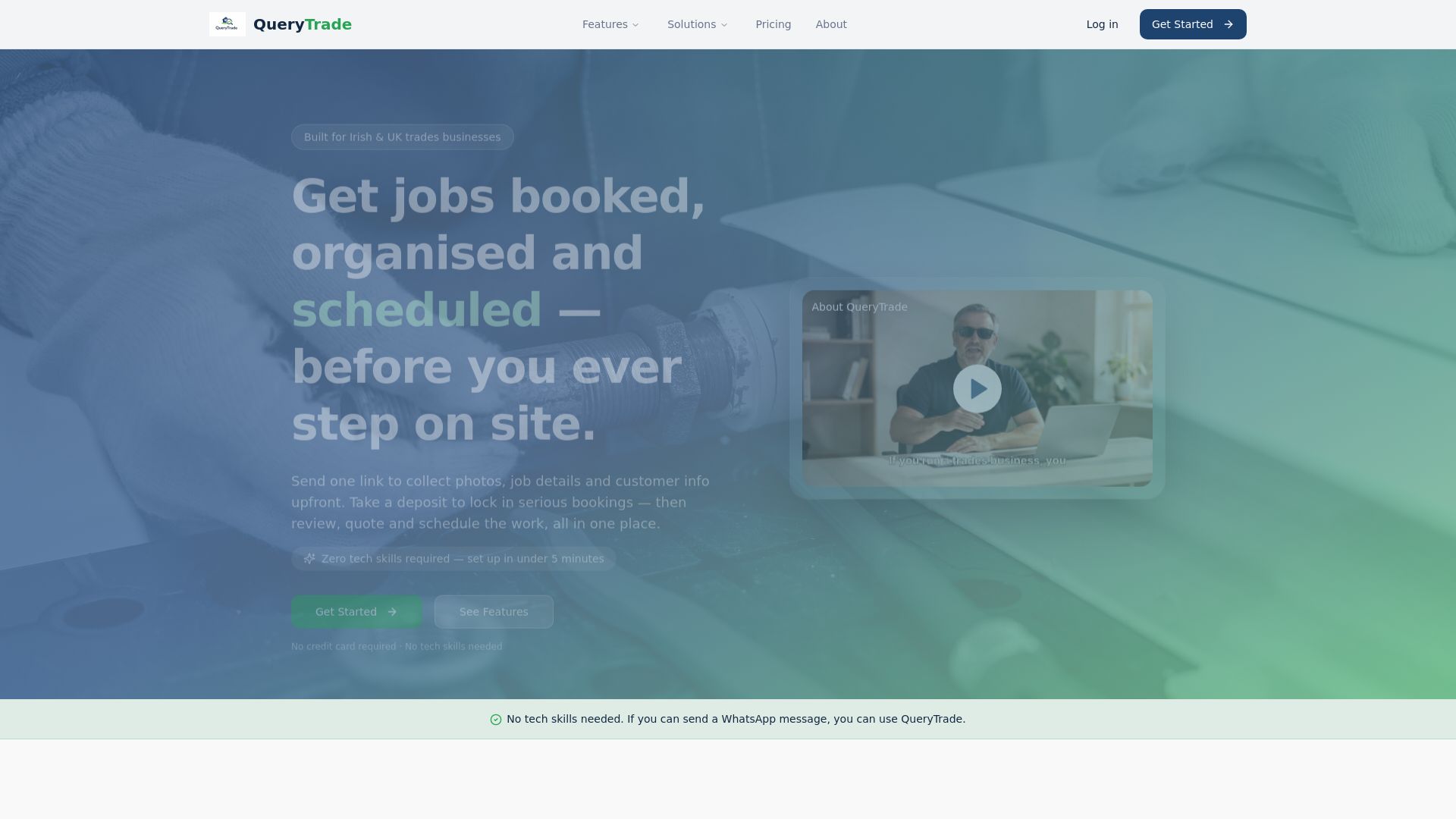
It suits plumbers, electricians, carpenters, painters, and builders who want inquiries organized without learning new software. If you've been managing job requests through a mix of texts, missed calls, and a notebook by the kettle, this replaces that entire system with one link you can drop into a WhatsApp reply, an Instagram bio, or an email signature. Check the features page for the full breakdown, or start your free 30-day trial and have your own intake form live before your next call comes in.
Sources
- Contractor Client Intake Form Template (Free Printable) | EstimationPro AI Blog
- How to Eliminate Paper Intake Forms in Plumbing 2026 | US Tech Automations
- Speed to Lead for Contractors | Pipeline On