
A work request form is a short, customer-facing intake page that captures a job's contact details, site address, photos, and two or three qualifying answers before you ever pick up the phone. Done right, it does two things: it collects everything you need to quote or book, and it filters out the tire-kickers who waste a site visit. Skip straight to it, and you'll cut wasted callouts within the first week.
Build the minimum version today. You need five fields: name, phone or email, job address, a short job description, and a photo upload. Add one urgency question ("Is this an emergency?") and one access question ("Any parking or entry restrictions?"). That's a launchable form in under five minutes, whether you build it in a free form tool or use QueryTrade's unique link, which already has these fields structured into a job pipeline.
- Contact and job details go in first: name, phone, email, address.
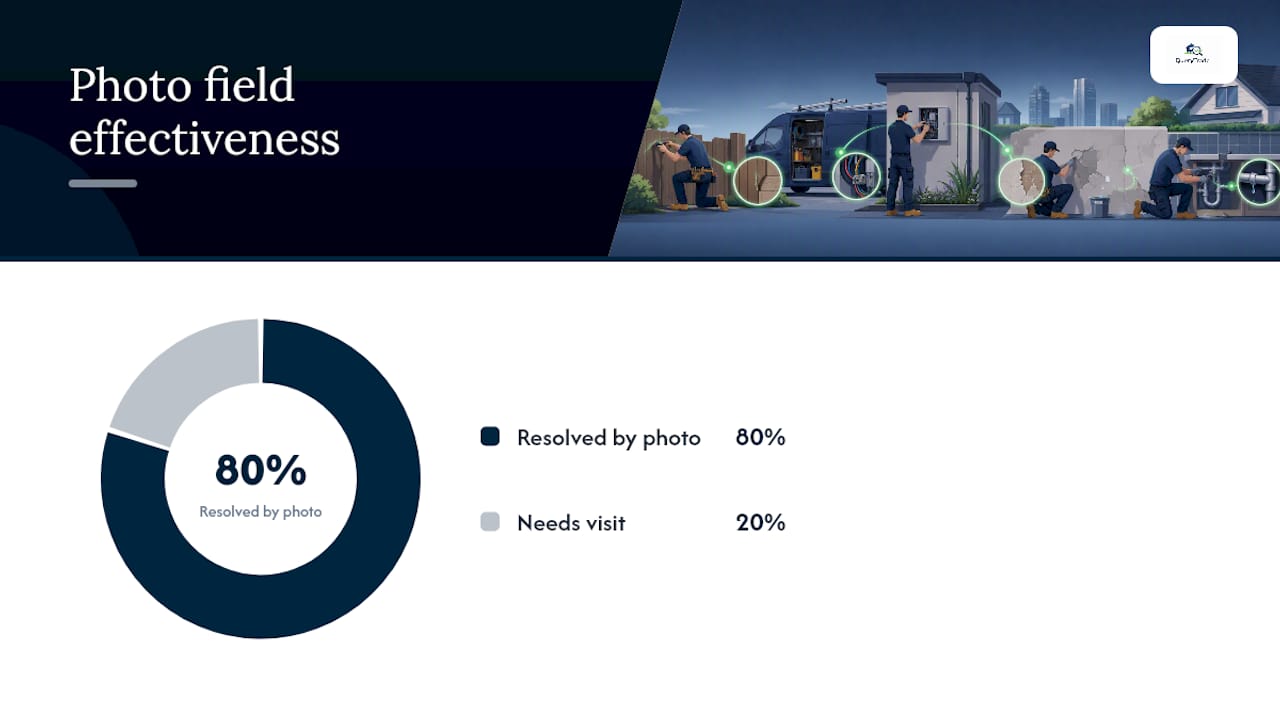
- One photo field catches 80% of the "what does this actually look like" questions before you drive out.
- Two qualifying questions (urgency, access) tell you whether this is a five-minute job or a half-day one.
- If the customer is a business, only then ask for a tax ID or W-9 equivalent.
Pro Tip: Reply within 30 minutes of a form submission if you can manage it. Speed of first response is one of the strongest predictors of whether an inquiry turns into a booked job, even before you've quoted a price.
Without a W-9 on file for a business customer, you may need to withhold at the IRS backup withholding rate of 24% when paying subcontractors or vendors tied to that job. That single form field can save you a tax headache months later.
Key Takeaways
A trades-focused work request form works because it pairs a five-field minimal intake with two price-moving qualifying questions and a fast, structured reply.
| Point | Details |
|---|---|
| Launch the minimal form first | Name, phone, address, job description, and one photo field are enough to start. |
| Add two qualifiers | Urgency and access questions change your price more than anything else on the form. |
| Set deposit rules early | Require a deposit only for emergencies or large material orders, with clear refund terms. |
| Automate your first reply | Use the acknowledge, clarify, commit template within your target SLA. |
| Test and iterate within 30 days | Watch response time, completion rate, and no-show rate, then adjust the form accordingly. |
| Query Trade centralizes it all | A unique intake link feeds directly into a job pipeline with deposits, photos, and auto-replies built in. |
Table of Contents
- What fields belong on a work request form template?
- How should the form behave to avoid wasted site visits?
- When should a work request form collect a deposit?
- How do you handle sensitive data securely?
- What's the best way to share and automate the form?
- What happens after a request lands in your inbox?
- What form and reply copy can you copy right now?
- What's the launch checklist before going live?
- What legal and privacy wording belongs on the form?
- Why simple intake beats a complicated form
- How Query Trade turns your form into booked jobs
- Sources
What fields belong on a work request form template?
Group your fields into seven blocks: Contact, Site, Job Details, Photos, Availability, Payment, and a Legal/Tax checkbox. Keep an eighth block for yourself only: Internal Tags, where you note lead source, urgency score, and assigned team member.
Not every field deserves to be required. The Goldilocks rule for lead forms says: only force fields that are essential to your immediate next action, and use conditional logic to reveal the rest. A homeowner requesting a leaky-faucet repair doesn't need to see a business tax ID field, while a property manager requesting a commercial fit-out probably does.
| Field group | Fields | Required? |
|---|---|---|
| Contact | Full name, phone, email | Required |
| Site | Address, unit/access notes | Required |
| Job details | Job type, short description, timeline | Required |
| Photos | Up to 3 images | Optional but strongly encouraged |
| Availability | Preferred date/time windows | Optional |
| Payment | Deposit acknowledgment, payment method preference | Optional (shown if deposit applies) |
| Legal/tax | Business name, tax ID / W-9 upload | Conditional (business customers only) |
Two or three qualifying questions do more work than any other part of the form. Ask about urgency ("Is this urgent, or can it wait a few days?"), scope ("Is this one fixture or a full room?"), and access ("Any stairs, parking restrictions, or pets on site?"). Each answer changes your price and your schedule, which is exactly why they belong here instead of in a follow-up call.

Pro Tip: Use a single "Full name" field instead of separate first and last name boxes. It's one less click, and research on B2B lead forms shows combined name fields improve completion without losing any usable data.
| Point | Details |
|---|---|
| Group fields logically | Contact, site, job, photos, availability, payment, legal. |
| Require only the essentials | Name, phone, address, and job description are the non-negotiables. |
| Use conditional logic | Show tax ID fields only when the customer identifies as a business. |
| Ask price-moving questions | Urgency, scope, and access change your quote more than anything else. |
How should the form behave to avoid wasted site visits?
The form's job is to act as a gatekeeper. It should collect enough detail that you can tell, from your phone, whether a job is worth a visit, a quick quote, or a polite decline. That means resisting the urge to cram in every field you can think of.
Three design rules keep the form doing its job without scaring people off:
- Design mobile-first. Most tradespeople's customers submit from a phone, often standing next to the broken thing they're calling about.
- Show no more than five fields on the first screen. Everything else appears after, or behind conditional logic.
- Use conditional logic to reveal only relevant follow-ups, the same principle recommended for B2B qualification forms, applied to a residential or small commercial context.
Behind the scenes, four things should happen automatically on submission: assign an owner (you, or whoever's on call), generate a unique inquiry ID, capture the source (a Google search, a Facebook ad, a QR code on your van), and set an SLA timer for your first reply.
- Customer submits the form with core fields visible.
- If they check "I'm a business," the form reveals a tax ID/W-9 upload field.
- If they select "urgent," the form flags the submission and triggers a faster SLA.
- The system assigns an owner and a unique ID before you've even opened the notification.
Pro Tip: Hide the "Are you a business?" toggle near the bottom of the contact section. Most residential customers will never see a tax field, and the ones who need it will find it exactly when it matters.
When should a work request form collect a deposit?
Deposits earn their place on the form when the risk of a no-show or a wasted materials order is real, not as a default on every job. Emergency call-outs, jobs requiring you to pre-order custom materials, and larger renovation-scale requests all justify asking for money upfront.
- Decide your deposit trigger. A common approach: any job over a set dollar threshold, or any emergency callout, requires a deposit before scheduling.
- Set the deposit as a flat fee for small jobs and a percentage (commonly 10% to 25%) for larger ones.
- Offer the payment method on the form itself. A card payment through Stripe is the fastest for most customers; some will still want a bank transfer or to pay on arrival.
- Confirm the payment status back to the customer immediately in your auto-reply, and tie that status directly to the job's stage in your pipeline.
- Show your refund and cancellation terms in plain language right next to the deposit field, not buried in a separate policy page.
- A deposit request that appears without context feels like a red flag to a first-time customer.
- A short line like "A $50 deposit secures your slot and is fully refundable if we cancel" removes almost all the friction.
- Tying deposit status to your job pipeline means you always know which "New" leads have actually committed money.
Pro Tip: Only ask for a deposit when it materially reduces your risk. Charging a deposit on every $80 callout annoys more customers than it protects you from.
How do you handle sensitive data securely?
Photos of a customer's property are low-risk. A business customer's tax ID and bank details are not, and they need to be treated differently from the moment they hit your form.
- Transmit everything over HTTPS. Any modern form builder does this by default, but confirm it before you launch.
- For W-9s or credit applications, use encrypted attachments or a proper digital-signature platform rather than a plain upload field.
- Store submissions in one central place, whether that's a CRM, an accounting system, or a dedicated job pipeline, and enter new data promptly rather than letting it sit in an inbox.
- Limit who on your team can see tax and banking fields. Not every employee needs access to every submission.
- Set a retention rule. Keep sensitive documents only as long as you actually need them for a job or for tax records.
Your form's privacy statement doesn't need to be complicated, but it needs four things: the lawful basis for collecting the data (fulfilling the customer's request), the purpose (scheduling and invoicing), a retention period, and a link to your full privacy policy. That's the core of a GDPR-compliant intake process for a small trades business.
| Point | Details |
|---|---|
| HTTPS is the baseline | Every form field, especially payment and tax fields, needs an encrypted connection. |
| Use signature platforms for W-9s | Avoid collecting tax IDs through plain email attachments. |
| Limit access internally | Only the people who need tax or banking details should see them. |
| State retention clearly | Tell customers how long you'll keep their data and why. |
Pro Tip: Never accept a tax ID or bank details over unprotected email. If a customer sends one that way anyway, move it into a secure system immediately and delete the email.
Backup withholding at 24% is the practical cost of skipping this step for business customers, which is reason enough to build the W-9 field into your form rather than chasing it down later.
What's the best way to share and automate the form?
Publishing the form is the easy part. Automating what happens after someone hits submit is what actually saves you time.
- Share it as a unique public link you can text, email, or post anywhere.
- Embed it as a responsive iframe on your website if you have one, with UTM parameters preloaded so you know which page or ad brought the lead in.
- Print a QR code on your van, invoices, or job-site signage. Someone standing in front of the problem is your best possible lead.
- Connect submissions to your CRM or job pipeline automatically, so nothing lives only in an inbox.
- Set up notifications through email or Slack the moment a form comes in, so urgent jobs don't sit unseen for hours.
- Build auto-reply templates for WhatsApp, Instagram, and email that match your form's own wording.
- A basic anti-bot check (a simple checkbox or hidden field) keeps spam submissions out of your pipeline.
- The channel roles matter: forms collect structured data, WhatsApp handles quick clarifications, email carries formal follow-up, and your CRM stays the single source of truth.
- A QR code costs almost nothing to print and often outperforms a business card for actual conversions.
Pro Tip: Keep your WhatsApp auto-reply under three sentences. It's a channel for quick clarifications, not a place to negotiate a full quote.
What happens after a request lands in your inbox?
Every submission deserves the same three-part reply: acknowledge it using the customer's own words, ask one or two clarifying questions that actually change your price, and commit to a specific, timestamped next step. This structure, backed by workflow research on inquiry handling, consistently outperforms a rushed guess at a quote.
Not every request deserves the same speed. Sort them into lanes:
- Urgent: emergencies, leaks, no-heat calls. Reply within the hour.
- Normal: standard repairs and quotes. Reply same business day.
- Nurture: vague or early-stage inquiries. Reply within 24 to 48 hours.
- Junk: spam, out-of-area, or clearly unworkable. Archive without a full reply.
This mirrors the RFQ triage approach used in quoting workflows: sort by what changes the answer, not by order of arrival.
- Log the request in your job pipeline the moment it arrives, even before you reply.
- Decide, based on the photos and answers given, whether you need a site visit or just more information.
- If more information is needed, ask for it specifically rather than a vague "tell me more."
- Move the job to the next pipeline stage only once you've actually confirmed the details.
Pro Tip: Tailor your clarifying questions by trade. Carpentry work needs photos plus rough dimensions. Appliance repairs need the model number. HVAC calls need the system's age and last service date.
Fast, specific replies beat polished, delayed ones almost every time. A templated acknowledgment with a real timestamp usually converts better than a carefully worded quote that arrives a day late.
What form and reply copy can you copy right now?
Here's a minimal form you can launch inside a minute: name, phone, job description, one photo field, and one urgency toggle. Nothing fancy, but it's functional.
The recommended version adds structure without adding much friction:
- Contact: full name, phone, email.
- Site: address, access notes.
- Job: type, description, timeline, urgency.
- Photos: up to three images.
- Conditional: business toggle, revealing tax ID field only when checked.
- Availability: two or three preferred time windows.
- Auto-reply for the form itself: "Thanks, [Name]! We've received your request for [job type] at [address]. We'll follow up within [SLA] with next steps."
- Auto-reply for WhatsApp: "Got your message about the [job type]. Can you send a quick photo if you haven't already? We'll confirm a time today."
- Auto-reply for email: a slightly longer version of the form reply, with your business name, phone number, and a link to reschedule if needed.
Pro Tip: Add a one-line progress indicator ("Step 2 of 3") to multi-section forms. It sounds small, but it measurably reduces abandonment on longer intake flows.
Friendly, specific wording beats formal language on every field label. "What's going on?" completes better than "Please describe your service requirement."
What's the launch checklist before going live?
Before you send the link to a single customer, run through the setup and the tests in order.
Pre-launch setup:
- Connect calendar sync so booked jobs show up where you actually work from.
- Turn on notifications for every new submission.
- Configure deposit and payment capture if you're using one.
- Add your privacy statement link to the form footer.
- Assign a default owner for new inquiries.
- Confirm your pipeline fields match the form's fields exactly.
Testing before launch:
- Submit five test entries from different devices, including at least one mobile phone.
- Submit one deliberately incomplete entry to see how it's flagged.
- Run one full deposit test transaction.
- Confirm the conditional logic actually hides and reveals the right fields.
- Check that a test submission lands correctly in your CRM or job pipeline.
Pro Tip: Watch three numbers for your first 30 days: response time, form completion rate, and no-show rate. If any of them looks off, the fix is almost always in the form's field order or your reply speed, not the product or service itself.
What legal and privacy wording belongs on the form?
Your privacy snippet doesn't need a lawyer's touch, but it needs to say something real. A workable version: "We collect this information to schedule and quote your job. We keep it for as long as needed for your job and our records, and we never share it beyond what's needed to complete the work. Contact us anytime to request your data be deleted."
- Only ask for a tax ID or W-9 from business customers, never residential ones.
- Collect it through a signed document workflow, not a plain form upload sitting in your inbox.
- Minimize what you collect. If a field isn't tied to a real next step, cut it.
- Document your lawful basis (fulfilling a request the customer initiated) and keep a simple retention and deletion policy on file.
| Point | Details |
|---|---|
| Keep the privacy line short | One paragraph covering purpose, retention, and a deletion contact is enough. |
| Business-only tax fields | Ask for a W-9 only when the customer identifies as a business. |
| Backup withholding risk | Missing W-9s can trigger 24% backup withholding on payments. |
| Minimize and document | Collect only what you need and record your lawful basis for it. |
This is general guidance, not legal or tax advice. Confirm your specific obligations with the IRS or a qualified accountant before finalizing your intake process.
Why simple intake beats a complicated form
The tradespeople who get the most out of an intake form aren't the ones with the fanciest one. They're the ones who kept it short, asked the two questions that actually change the quote, and replied fast. A form with fifteen fields and perfect branding that sits unanswered for two days loses to a five-field form answered in twenty minutes, every time.
Speed and accuracy beat polish. Launch the minimal version this week, watch how customers actually fill it out, and adjust after your first 30 submissions rather than trying to guess every edge case up front. Most of what needs fixing only becomes obvious once real people start using the thing.
Query Trade built its intake link around exactly this logic: a no-tech form that plugs straight into a job pipeline, so the fields you collect are the fields you actually use to schedule and quote. You don't need to reinvent this process from scratch to get it right.
How Query Trade turns your form into booked jobs
Query Trade is the shortcut past building and wiring a form yourself. Instead of stitching together a form builder, a separate CRM, and a payment processor, you get one unique link that already does the job: structured intake fields, photo uploads, conditional logic for business customers, and a deposit request through Stripe, all feeding directly into a job pipeline with stages from New to Completed.
Setup takes under five minutes, with no technical skills required. Once it's live, submissions land straight in your pipeline, calendar sync keeps your schedule current, and auto-reply templates handle the first response for you across WhatsApp, Instagram, and email. Deposits collected upfront cut down on no-shows and last-minute cancellations, which matters more to your bottom line than any amount of form polish.
Whether you're a plumber fielding emergency calls or a builder managing renovation inquiries, Query Trade's trade-specific solutions adapt the fields to your job type. Start a free trial and generate your own intake link, or check the pricing plans built specifically for Irish and UK tradespeople.
Sources
- Inquiry response workflow: forms, WhatsApp, email, and CRM | Mansion Tec
- Free new customer form template: streamline onboarding | SalesTaxCel
- HuperForms - Best lead qualification forms for B2B | HuperForms